2026-06-17
Automate Trello with OpenClaw: Reconcile Every Write
Build safer Trello automation with admitted card mutations, durable operation keys, precondition reads, webhook deduplication, and post-write reconciliation.
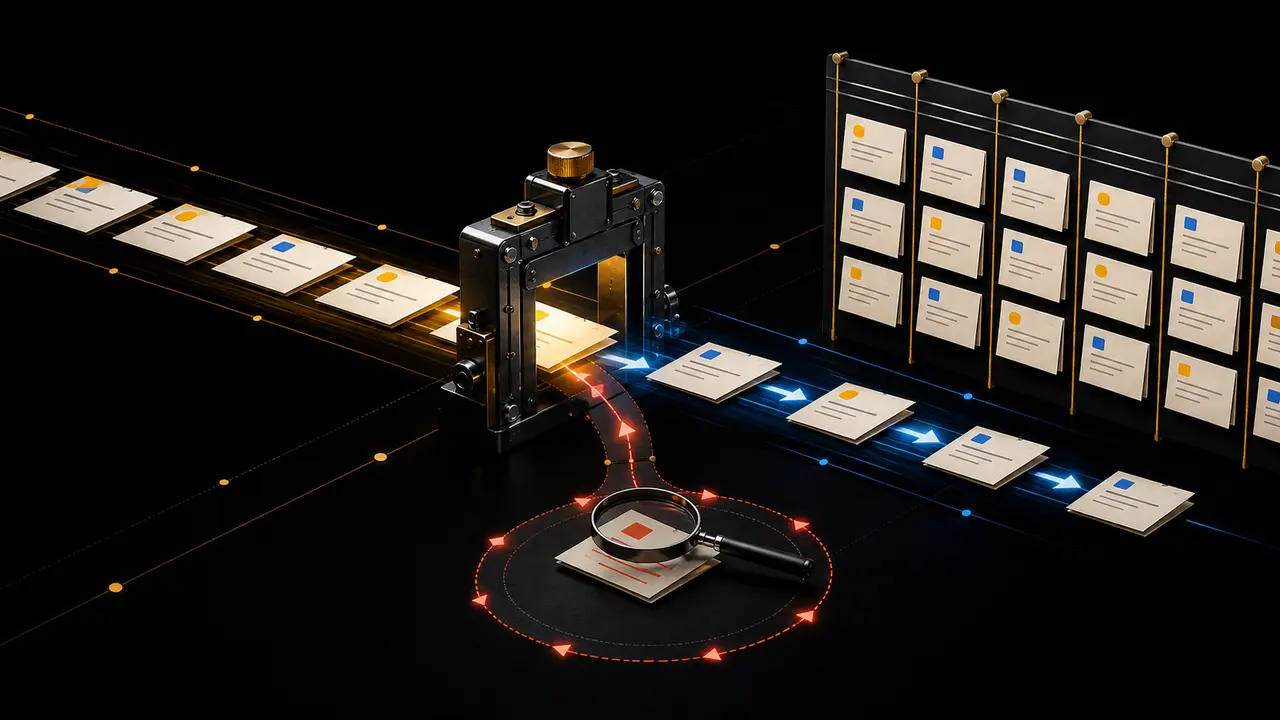
A Trello card move becomes interesting when the network times out. The worker sent the update. Trello may have committed it. The caller received no usable response. Repeating the request feels reasonable; so does marking the run failed. Either choice can be wrong.
That ambiguity is the design problem behind “automate Trello with OpenClaw.” Card classification is an agent task. Moving a shared work item is a distributed mutation: a person may edit the card between the read and the write, a webhook may arrive twice, and a retry may begin after the first attempt actually succeeded. A prompt cannot settle those races. Records can.
Sources checked Trello authorization, card update, webhook, and rate-limit contracts
Observation date 22 July 2026
Probe result four official pages returned HTTP 200 and every cited contract string matched
Boundary probe /1/members/me without credentials was rejected with HTTP 400
Evidence mode source analysis; no claim of a live Trello workspace deployment
The dependable shape has three records: an admitted proposal, an apply receipt, and an observation of board state. OpenClaw may help decide the proposal. A narrow integration owns the credential and write. Trello remains authoritative about the card. Keeping those statements separate costs a few reads and saves a great deal of guesswork.
The board is not the worker queue
A Trello board is a collaborative surface. Humans drag cards, Butler rules run, Power-Ups react, and other integrations write through the same API. It is a poor place to store the private execution state of one agent run. A label named “processed,” for example, says nothing about which input produced the decision, which exact change was approved, or whether the label itself was added before a timeout.
The worker needs a small ledger outside Trello. It can be a database table, a durable TaskFlow record, or another transactional store. The technology matters less than the questions the row can answer after a crash:
- Which board, card, and expected source list did the proposal bind?
- What normalized mutation was admitted, and by which policy or person?
- Was an apply attempt started, acknowledged, reconciled, rejected, or left uncertain?
- What did a fresh Trello read show after the attempt?
Do not hide that row inside an agent transcript. Transcripts are useful evidence, but they are awkward lock managers and worse uniqueness constraints. The operation identity should survive model changes, prompt edits, and a restarted Gateway.
Three records, with three different owners
Proposal
The agent’s bounded recommendation: target card, expected state, requested patch, reasons, evidence, and risk class. It has no write authority by itself.
Apply receipt
The integration’s durable attempt: operation key, admitted patch, start time, response class, and sanitized transport evidence.
Observation
A new Trello read: card ID, board and list IDs, selected fields, activity time, and whether the admitted postcondition now holds.
None can impersonate another. An eloquent proposal is not an apply receipt. HTTP 200 is not a durable observation if the response vanished before it was recorded. A webhook body describes a change event; it is not permission to perform a second change.
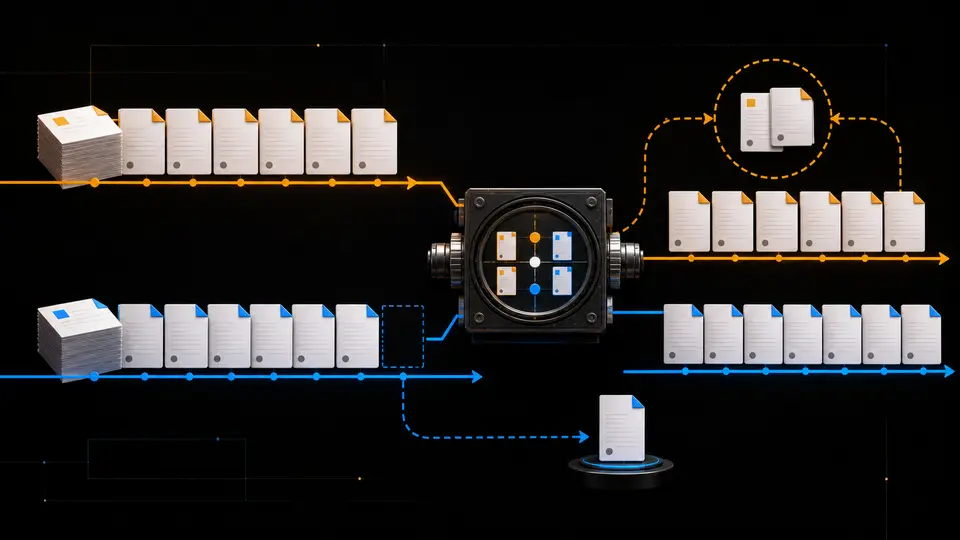
This separation also makes review cheaper. An operator can approve a proposal without receiving the credential. The write helper can reject an out-of-policy patch without interpreting prose. A reconciliation job can inspect uncertain attempts without asking a model to remember what it meant.
The credential follows a user, not your workflow
Trello’s current authorization guide describes token-based access. An API key is tied to a Power-Up, and a user grants a token that makes requests on that user’s behalf. That last phrase is the important one. The token’s practical reach follows the approving user’s board access; it does not shrink itself to the single workflow named in an OpenClaw task.
Use a dedicated Trello user when the automation matters, and invite it only to the boards it needs. The integration should still keep an explicit board allowlist. Membership and allowlist defend different mistakes: membership limits what the credential can reach, while the local policy stops a typo or hostile input from choosing another reachable board.
The key, token, and application secret belong in the trusted integration process. They should not appear in:
- the agent prompt or proposal JSON;
- a shell command that becomes part of routine logs;
- card comments, descriptions, or webhook callback parameters;
- a browser session offered to untrusted page content.
An identity read such as GET /1/members/me is useful during setup, but retain the member ID and username rather than the credential-bearing request. If the wrong member appears, stop before board discovery. A green network check against the wrong account is not progress.
Admission is where the agent stops improvising
A proposal becomes executable only after it is normalized. “Put this where engineering will see it” is not a mutation contract. “Move card 65f… from list 661… to list 66a… if it is still open and still in 661…” is close.
A compact envelope can look like this:
{
  "operationKey": "trello:card:65f…:move:66a…:request-0184",
  "boardId": "64b…",
  "cardId": "65f…",
  "expected": {
    "listId": "661…",
    "closed": false
  },
  "patch": {
    "idList": "66a…"
  },
  "approval": {
    "mode": "human",
    "decisionId": "decision-7431"
  }
}
The operation key is owned by the automation, not returned by Trello. The current PUT /cards/{id} reference lists the card ID and mutable fields including idList; it does not advertise an idempotency-key parameter. That does not make safe retries impossible. It means the worker must compare durable intent with current card state instead of assuming the endpoint will deduplicate a repeated business action.
Admission should reject extra fields. If the approved action is a move, a proposal that also changes the name, members, due date, or closed state is a different request. Silent field creep is especially dangerous with model-produced objects because a plausible value can look harmless in a large payload.
Apply against the card you can still see
The integration begins by acquiring a lock or uniqueness lease for the operation key. It then reads the card from Trello with only the fields required for the precondition and receipt. Names may be included for operator readability, but IDs carry the contract.
No-op, conflict, or write
The fresh read has three useful outcomes. If the card already satisfies the postcondition, mark the operation reconciled without another write. If the expected precondition is false, record a conflict and return the observed fields. Only when the expected state still holds should the helper submit the admitted patch.
After the update call, read the card again. That postcondition read is not ceremonial. It settles the common case where the write response was lost, transformed by an intermediary, or recorded incompletely. It also catches a surprising success response whose returned object does not contain the state the operation was meant to establish.
The write result answers “what did this request return?” Reconciliation answers “what state does Trello expose now?” Production recovery needs the second answer.
A move can be declared complete when the observed card ID and list ID match the admitted postcondition. More complex changes deserve equally narrow checks. If the operation adds one label, verify that label’s ID is present; do not treat any increased label count as success. For comments, retain the created action or comment identifier when the API returns one, then query by identity rather than fuzzy text.
An uncertain response is a state, not a verdict
Suppose the PUT connection closes after bytes leave the host. The attempt record becomes uncertain. A recovery worker does not immediately resend. It reads the card and compares the admitted postcondition:
- postcondition present: mark reconciled and keep the first attempt as the likely commit;
- precondition still present: the first write apparently did not take effect, so a bounded retry may proceed under the same operation key;
- neither condition present: another actor changed the card; stop with a conflict that includes the observed state.
This is intentionally conservative. It cannot reconstruct every race from a card snapshot, and it should not pretend to. The activity feed or action endpoints may supply more evidence for a particular operation, but the safe fallback remains “do not add a second mutation while ownership is ambiguous.”
Webhooks are evidence, not commands
Trello webhooks attach to a model the token can access. During registration, Trello sends an HTTP HEAD request to the callback and requires a 200 response; an invalid TLS certificate also blocks creation. This is a reachability test. It does not certify that the callback can finish model work inside a delivery window or that its effects are safe to repeat.
The receiver’s first job is therefore small:
- read the raw request body and preserve the exact callback URL used by the signature contract;
- verify
X-Trello-Webhookusing the application secret as documented; - admit the event into durable storage under its action identity;
- acknowledge promptly, then let a worker perform reads or proposals.
A duplicate action ID becomes a no-op at admission. A new action about a card with an in-flight operation may trigger reconciliation, but it does not approve another move. This avoids a feedback loop in which the integration reacts to its own card update, writes again, and manufactures fresh events.
Polling is a reasonable first transport. A checkpointed poll is easier to inspect than a public callback, especially for a board with modest activity. Move to webhooks when latency has an owner and the callback path has signature verification, durable intake, duplicate suppression, and replay tests. Fashion is not an operational requirement.
The scheduler owns both rate budgets
The current Trello limits page states three ceilings relevant here: 300 requests per ten seconds for an API key, 100 requests per ten-second interval for a token, and 100 requests per 900 seconds to /1/members/. Exceeding a limit returns HTTP 429. The larger application budget does not absorb the smaller token budget.
A scheduler should meter requests before they reach the HTTP client. Give each credential pair a local key bucket and each token its own smaller bucket. Treat member lookups as a separate, slow lane. Board enumeration and identity checks belong in setup or cached discovery, not inside every card decision.
Keep normal traffic comfortably below the published maximum. The spare room is for human actions, another approved integration, reconciliation reads, and clock skew between workers. When Trello responds with 429, preserve the admitted operation, delay it, and re-read before any later write. A throttled request is not permission to replay the entire batch.
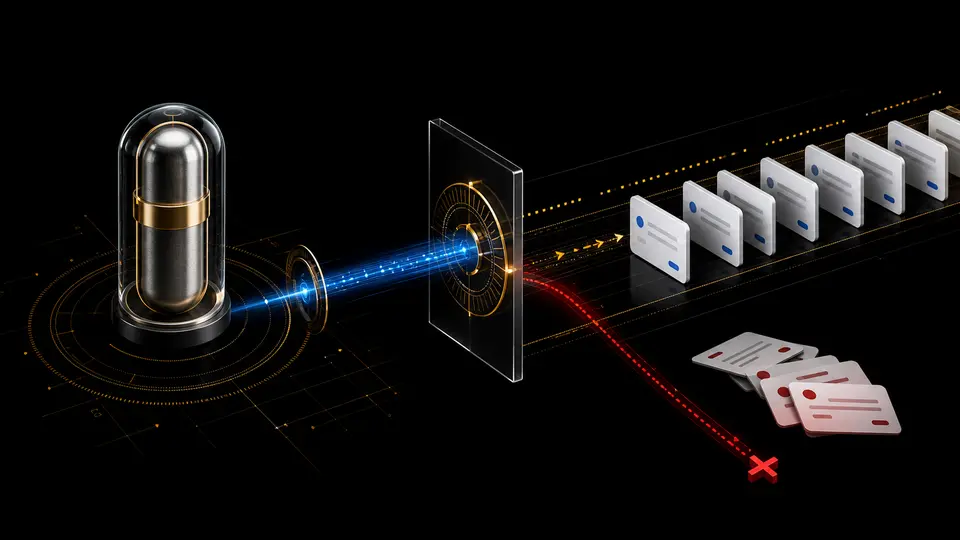
A failure ledger makes recovery uneventful
| Observed condition | Durable state | Next action | What not to infer |
|---|---|---|---|
| Timeout after an admitted card update | uncertain | Read the card; compare precondition and postcondition under the same operation key. | A timeout does not prove failure. |
| Card already satisfies the exact postcondition | reconciled | Record the observation and finish without another write. | Success does not prove which actor made the change unless action evidence binds it. |
| Card no longer satisfies the approved precondition | conflict | Return the observed IDs and request a new decision if change is still wanted. | An old approval does not float to a new board state. |
| HTTP 429 | deferred | Respect the budget, delay the operation, and re-read before a later attempt. | Throttle failure does not make a whole batch safe to replay. |
| Repeated webhook action ID | duplicate-event | Acknowledge from durable intake; create no second worker action. | Redelivery is not a fresh instruction. |
| Credential revoked or wrong member returned | disabled | Stop writes until an operator repairs and re-verifies identity and board scope. | Repeated authentication attempts cannot restore authority. |
The ledger should retain sanitized evidence, not full card contents by default. Card descriptions and comments can contain customer data, links, and instructions written by outsiders. Store the minimum fields needed for the operation and put retention limits on proposal evidence. A board integration is also an untrusted-content ingestion path.
What OpenClaw should own
OpenClaw is well suited to the judgment around a card: summarize new intake, compare it with a written routing policy, identify missing information, and produce a proposal with cited card fields. That work can live in a skill or durable task workflow whose output is the normalized proposal envelope.
The credential-bearing mutation belongs behind a narrow tool, plugin, or agent-safe helper. Its interface should expose business operations such as proposeMove, applyApprovedMove, and reconcileOperation, rather than arbitrary authenticated HTTP. The helper can enforce:
- exact board and operation allowlists;
- field-level schemas and maximum batch sizes;
- operation-key uniqueness and in-flight locking;
- precondition reads and postcondition receipts;
- per-token request budgets and secret-safe logging.
A cron job may trigger polling or a daily triage brief. It should not start a second mutating run while the first still owns unresolved operations. If the schedule fires again, the useful answer is “resume reconciliation for these operation keys,” not “classify the board again and hope the same cards do not move twice.”
This design does not depend on an unofficial package named openclaw-trello. If a reviewed plugin exists in a particular installation, inspect the exact tool contract and credential behavior. If the host already has a constrained HTTP integration, a skill may supply the method. The security question is what runtime surface can hold the token and which mutations it will refuse.
Introduce one reversible write, then widen the contract
Begin on a private sandbox board with the dedicated automation user. Prove the identity and enumerate the approved board and list IDs. The first operation should be a single reversible comment or one card move between two test lists, admitted by an explicit human decision.
Force the awkward paths before adding a schedule. Interrupt the client after it starts a write and verify that reconciliation settles the operation without a second mutation. Deliver the same webhook body twice. Change the card manually between proposal and apply. Lower the local request budget until the queue defers work. Revoke the token and confirm that the integration disables writes instead of churning on authentication.
Only then add autonomous proposals. Approval can widen by risk class rather than by vague confidence: reading and summarizing are one class; adding a known label may be another; moving a card across a handoff boundary may still require a person. Archive, delete, membership, and broad board changes deserve separate operations and separate review.
The end state is not “the agent has Trello access.” It is smaller and more useful. The agent can explain one proposed change. The trusted helper can apply only the admitted patch. The ledger can tell whether Trello now shows the intended state.
The three receipts worth keeping
After a run, an operator should be able to inspect three compact artifacts without opening the full conversation: the proposal that names the evidence and expected card state; the apply receipt bound to one operation key; and the reconciled observation returned by Trello. If one is missing, the run is not complete merely because the board looks plausible.
That is the practical boundary for automating Trello with OpenClaw. Let the model reason about work. Let a narrow integration own authority. Let Trello report board truth. The ledger connects them without pretending they are the same system.
Primary sources
- Authorizing with Trello’s REST API — API keys, Power-Ups, user tokens, and delegated user authority.
- Trello Cards REST API: Update a Card — the current update route and mutable card fields.
- Trello Webhooks — model ownership, callback registration, event payloads, and request signatures.
- Trello REST API rate limits — per-key, per-token, and member-endpoint ceilings plus 429 behavior.
For the scheduler side, the companion OpenClaw cron jobs guide covers persistent sessions, run history, and overlap diagnosis. This teardown stays with the mutation seam: admission, apply, and reconciliation around one shared Trello card.