2026-06-18
Automate Asana with OpenClaw: Keep the Task Graph Honest
Build safer Asana automation with project-scoped task coordinates, explicit read/write scopes, durable operation keys, and webhook-plus-polling reconciliation.

Moving an Asana task to a section looks like a one-field update. It is not. The task may belong to several projects, the section move has project-scoped side effects, the caller may hold write permission without read permission, and a compact webhook event may arrive late—or never arrive at all.
That makes “automate Asana with OpenClaw” a graph-consistency problem before it is a prompt problem. The model can classify work and propose a destination. A credentialed integration still has to prove which task, which project membership, which expected section, and which postcondition the approval actually covered.
/users/me without a bearer token returned HTTP 401The source comparison used current Asana documentation and a local state-machine probe; it did not use a live customer workspace or claim production experience that was not observed. The resulting design is intentionally narrower than “give the agent Asana access.” It admits one typed mutation, reads current graph state, applies only the allowed edge change, and reads again.
Requirements: bind one project membership
An Asana task is not a Trello card with one global board column. A task can be multi-homed: the same GID can participate in more than one project. Each project membership can carry its own section. That matters because Asana’s current POST /sections/{section_gid}/addTask contract says the operation removes the task from other sections of the project. It does not say the task leaves every other project.
The graph remains shared even when one membership moves.
A worker that stores only taskGid and desiredSectionGid has thrown away the scope of the change. It cannot explain which project membership should move, whether the destination section belongs to that project, or whether an identically named section elsewhere is irrelevant. Names improve receipts; GIDs bind authority.
Mutation coordinate
workspaceGid + projectGid + taskGid + expectedSectionGid + desiredSectionGid
The tuple is verbose because each term closes a different ambiguity. Keep it in the admitted operation, not merely in an agent transcript.
No project GID, no move.
Before any move, fetch the task with the minimum fields needed to identify its memberships and current section in the approved project. Reject a destination section that is not already mapped to that project. If the task is not visible, the correct outcome is not “create a replacement.” It is a visibility failure that leaves Asana unchanged.
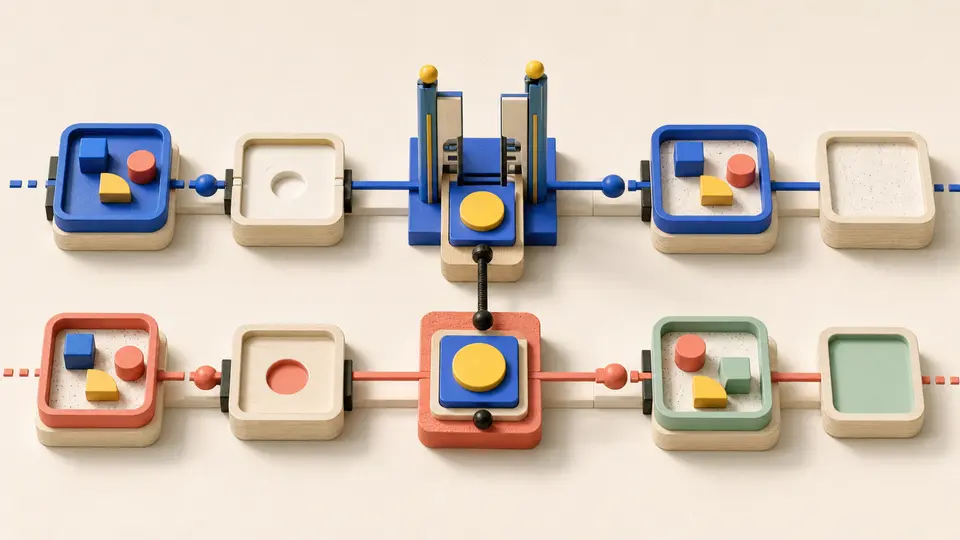
This distinction also improves incident review. “Task 1200 moved” is incomplete. “Task 1200 moved from section 2000 to section 3000 inside project 7000; project 9000 membership was observed and left unchanged” is a claim that can be compared with current state.
Setup: give proof its own scope
Asana’s OAuth guide makes a subtle point unusually explicit: scopes do not inherit. A write scope does not grant read access. A production integration that can modify tasks but cannot read them is therefore unable to run the safest form of mutation protocol. It can attempt a write; it cannot establish the precondition or reconcile the postcondition.
A write-only token can act. It cannot prove.
For a single-user prototype, Asana permits a personal access token. The PAT documentation says the token acts on the user’s behalf, should be treated like a password, and should not be hardcoded. It also directs multi-user applications that act on behalf of users toward OAuth. The practical boundary is straightforward:
- use a PAT only for a deliberately single-user workflow whose owner understands that the token inherits that user’s reachable Asana data;
- use OAuth for an application connecting multiple users, and request both the read and write scopes the reconciliation protocol actually needs;
- keep the bearer token inside the integration process, never in the model context, task description, comment, browser page, or routine command log;
- record the authenticated user GID and approved workspace/project GIDs separately from the secret.
A successful GET /users/me is an identity check, not a project allowlist. The token may see far more than the one workflow needs. Local policy must still refuse project, section, task, and field coordinates outside the admitted envelope.
Sparse task updates prevent one class of damage
The current task update reference recommends sending only the fields that should change. Otherwise, a caller can overwrite edits another person made after the task was last retrieved. That is more than payload tidiness. It is a warning about stale representations.
Suppose an agent reads a task, proposes a new due date, and later submits the entire cached task object. Between those steps, a teammate changes the assignee and description. A full-object update can turn one approved due-date change into three unintended reversions. A sparse payload such as {"due_on":"2026-08-03"} leaves unspecified fields alone.
Sparse updates are necessary, but they are not compare-and-swap. The API can preserve unrelated fields while a human changes the very field the approval covered. If the due date was 1 August when approved and is 5 August at apply time, a sparse write to 3 August still overwrites a newer decision. The integration needs an expected value and a fresh read.
Sparse is not conditional; it changes less, not later.
“Only change these fields” protects the rest of the task. “Only change them if the approved state still exists” protects the decision.
The operation envelope binds intent to graph state
Do not send free-form model output directly to Asana. Normalize it into a small business operation and reject unknown keys. A section move might be represented like this:
{
  "operationKey": "asana:task:1200:move:3000:request:0184",
  "workspaceGid": "5000",
  "projectGid": "7000",
  "taskGid": "1200",
  "expected": {
    "sectionGid": "2000",
    "completed": false
  },
  "desired": {
    "sectionGid": "3000"
  },
  "approval": {
    "mode": "human",
    "decisionId": "decision-7431"
  }
}
The operation key belongs to the automation ledger. It should be unique for the business decision, not for an HTTP attempt. A network retry, a restarted worker, and a recovery run all resume the same key. Creating a new key merely because an attempt timed out defeats the uniqueness boundary.
One approval, one key.
Admission can now be deterministic. Confirm the project and section allowlists. Confirm the token identity and required scopes. Acquire a uniqueness lease for the operation key. Fetch the task and isolate the membership for projectGid. Then choose one of three paths:
- the desired section is already observed: store a no-op receipt and do not write;
- the expected section is no longer observed: record a conflict and require a new decision;
- the expected state still holds: submit only the admitted section operation, then fetch current task memberships again.
That last read is the completion test. The write response is valuable transport evidence, but the postcondition is “this task now has section 3000 in project 7000.” The returned record may be sufficient when it contains the exact requested membership fields; a targeted read is easier to standardize across success, timeout, and recovery paths.
Failure modes: timeout, throttle, or lost authority
If the connection closes after the mutation request leaves the host, neither “failed” nor “retry now” is justified. The ledger should record uncertain and launch reconciliation under the original operation key.
| Fresh observation | Durable result | Next action | Unsafe inference |
|---|---|---|---|
| Desired section is present in the approved project | reconciled | Store the observed membership and finish without another write. | A lost response does not prove the first attempt failed. |
| Expected section is still present | retry-eligible | Retry once under the same operation key and budget, then reconcile again. | Old state alone does not justify an unbounded loop. |
| A third section is present | conflict | Stop and return the current project/section GIDs for a new decision. | An old approval does not transfer to a new graph state. |
| Task or project membership is no longer visible | visibility-failure | Disable the operation until identity, access, or deletion is reviewed. | Absence is not permission to recreate the task. |
HTTP 429 with Retry-After | deferred | Preserve intent, wait as directed, and re-read before a later write. | A throttled batch is not safe to replay from the beginning. |
| HTTP 401 or 403 | disabled | Stop writes and require credential or scope repair. | Repeated authentication attempts cannot create authority. |
Uncertain is not a euphemism for failed.
The local boundary probe exercised 31 variations of these paths, including missing operation identity, an out-of-allowlist project, read-only and write-only tokens, an existing lease, hidden tasks, precondition conflicts, successful and unsuccessful postconditions, timeouts, throttling, authorization failure, and unrelated second-project membership. The point was not to imitate the Asana service. It was to make the worker’s refusal and recovery states explicit before a real token exists.
Webhooks report change; they do not preserve history
Asana’s webhook guide describes the delivery system as at-most-once and says delivered webhooks cannot be replayed. In exceptional circumstances, an event may be missed. If a receiver fails to return success within ten seconds, Asana can retry for up to 24 hours, but retries do not transform the channel into a replayable log.
The events are also compact. Asana expects integrations to fetch current resource state when they need full details. Those facts rule out two tempting designs:
Fast notification is not complete history.
- a webhook body should not be treated as a complete task snapshot;
- receipt of a change event should not be treated as approval to perform another task mutation.
The proof read needs its own capacity.
A callback has one time-sensitive job: verify the X-Hook-Signature against the raw request body, durably admit the compact event or heartbeat, and acknowledge. Model work belongs after admission. So do Asana reads. Holding the request open for classification consumes the ten-second response window without strengthening correctness.
Do not fabricate a global event ID if the payload does not supply one that meets the workflow’s uniqueness needs. A practical intake key can bind the webhook subscription, resource/action tuple, event timestamp, and a payload digest, while downstream processing remains idempotent against current Asana state. Duplicate suppression is useful, but state reconciliation is the stronger defense.
Pair fast signals with a slow inventory
For a workflow that cannot tolerate a missed task change, Asana itself recommends fallback polling. The useful design is not webhook or polling. It is a fast notification lane plus a slower truth lane.
The webhook lane marks affected task or project GIDs dirty and schedules targeted reads. The inventory lane walks only approved projects with a durable cursor or checkpoint, compares selected fields with the last observed version, and repairs missed notifications. Both lanes feed the same reconciliation logic. Neither lane writes simply because it found a difference.
This arrangement removes timing assumptions from the agent. A delayed event may arrive after the inventory already observed the new state. That is a no-op, not an anomaly that needs a second summary or mutation. An event about the integration’s own write can attach to the existing operation receipt. A missed event is eventually discovered without pretending the callback was a durable message broker.
Delay changes latency, not authority.
Polling scope matters. Fetching an entire large workspace on every schedule creates cost without improving the mutation contract. Start from approved project GIDs, request only fields the policy uses, page deliberately, and checkpoint after confirmed pages. A long inventory should be resumable without reading the first page again after a crash.
Troubleshooting: 429 is not one kind of limit
As of the observation date, Asana’s rate-limit page lists standard per-token minute quotas of 150 requests on free domains and 1,500 on paid domains. It also lists concurrent ceilings of 50 GET requests and 15 simultaneous POST, PUT, PATCH, or DELETE requests. A separate cost limiter accounts for expensive graph traversal. The documentation warns that the limits may change.
One headline requests-per-minute value is therefore an inadequate scheduler. The worker should track at least:
- a per-authorization-token rate bucket;
- separate in-flight read and mutation counts;
- the size and field expansion of inventory reads;
- the server’s
Retry-Aftervalue after any 429; - reserved capacity for reconciliation and human-facing traffic.
Ignoring Retry-After is especially counterproductive because rejected requests can still count against quotas. Preserve the operation, delay it, and re-read when it becomes eligible. Do not hold a uniqueness lock for the entire sleep interval if a renewable lease or durable deferred state can protect the key more safely.
Graph cost changes the economics of “just fetch everything.” Deep subtasks, enormous projects, and broad optional-field expansion can make one read much more expensive than another. A narrow postcondition read is usually cheap, so budget it explicitly rather than sacrificing the proof step to make room for speculative bulk discovery.
OpenClaw should propose; the integration should refuse
OpenClaw is useful where judgment is actually required: summarize incoming work, map a request to a written project policy, identify missing fields, propose a section or assignee, and explain why. The output should be the operation envelope plus evidence—not an authenticated HTTP request assembled inside open-ended prose.
The credential-bearing surface should expose narrow business tools. Examples include proposeTaskRouting, applyApprovedSectionMove, reconcileAsanaOperation, and summarizeProjectChanges. The mutating tool should refuse:
- unknown projects, sections, task fields, or payload keys;
- operations missing a durable key or explicit expected state;
- a move whose destination section is outside the admitted project;
- a second mutating run while the operation key is leased or uncertain;
- bulk completion, deletion, reassignment, or membership changes unless a separate policy explicitly admits them.
This is one place where a skill and a tool have different responsibilities. A skill can teach the agent how to produce the proposal, cite source task fields, and classify risk. A tool or plugin owns the token, schema, allowlist, rate budget, and receipts. Describing those controls in a skill does not enforce them if the model also receives arbitrary bearer-authenticated HTTP.
Widen permission by failure class
A safe rollout begins with an approved sandbox project, but the interesting milestone is not “the connection works.” It is whether every awkward state has an owned outcome.
Start with read-only inventory and compare task memberships with the Asana UI. Add a single reversible comment or one section move between sandbox sections under explicit approval. Then deliberately change the task between proposal and apply. Interrupt the client after mutation begins. Re-deliver the same webhook payload. Disable read scope while leaving write scope. Force the local limiter to defer an operation. Remove the automation user from the project.
Each exercise should end in a receipt such as reconciled, conflict, deferred, or disabled. “The agent handled it” is not inspectable enough. Only after recovery is boring should the policy widen from human-approved sandbox moves to low-risk autonomous proposals or writes.
Permission can widen by operation, field, and project. Reading selected task metadata is one class. Adding a known tag or moving between two triage sections may be another. Completing tasks, editing dependencies, changing custom fields with financial meaning, broad reassignment, deletion, and project membership deserve separate contracts. Model confidence is not a permission tier.
The receipt is smaller than the conversation
A completed Asana automation run should be explainable from a compact record: operation key, token identity GID, project/task coordinates, expected state, admitted patch, approval reference, attempt class, Retry-After when relevant, and the final observed membership or field value. Full task descriptions and comments need not be copied into the ledger unless the decision truly depended on them.
That data-minimization choice matters because Asana content is user-authored and may contain customer information, links, or instructions aimed at the agent. The proposal can cite the minimal fields it used; the receipt can retain hashes or short excerpts where a full body would create unnecessary exposure.
The durable boundary is now clear. OpenClaw reasons about the task. The integration admits one graph mutation. Asana reports current state. Webhooks accelerate attention, polling repairs gaps, and the ledger keeps the three claims from collapsing into one optimistic “done.”
Done should mean observed.
Sources
- Asana personal access tokens — token handling, delegated user authority, and when to prefer OAuth.
- Asana OAuth — authorization-code flow, explicit resource scopes, and the non-inheritance of read and write access.
- Update a task — sparse updates, stale-field overwrite risk, required task write scope, and returned task data.
- Add task to section — project-scoped section movement and placement behavior.
- Asana webhooks — handshake and signatures, compact events, delivery timing, at-most-once behavior, retries, and polling guidance.
- Asana API rate limits — per-token quotas, concurrent request ceilings, cost limits, and
Retry-After.
The companion OpenClaw cron jobs guide covers scheduling and overlap diagnosis. This article stays with the Asana seam that makes a schedule safe: task-graph coordinates, scoped authority, explicit uncertainty, and post-write reconciliation.