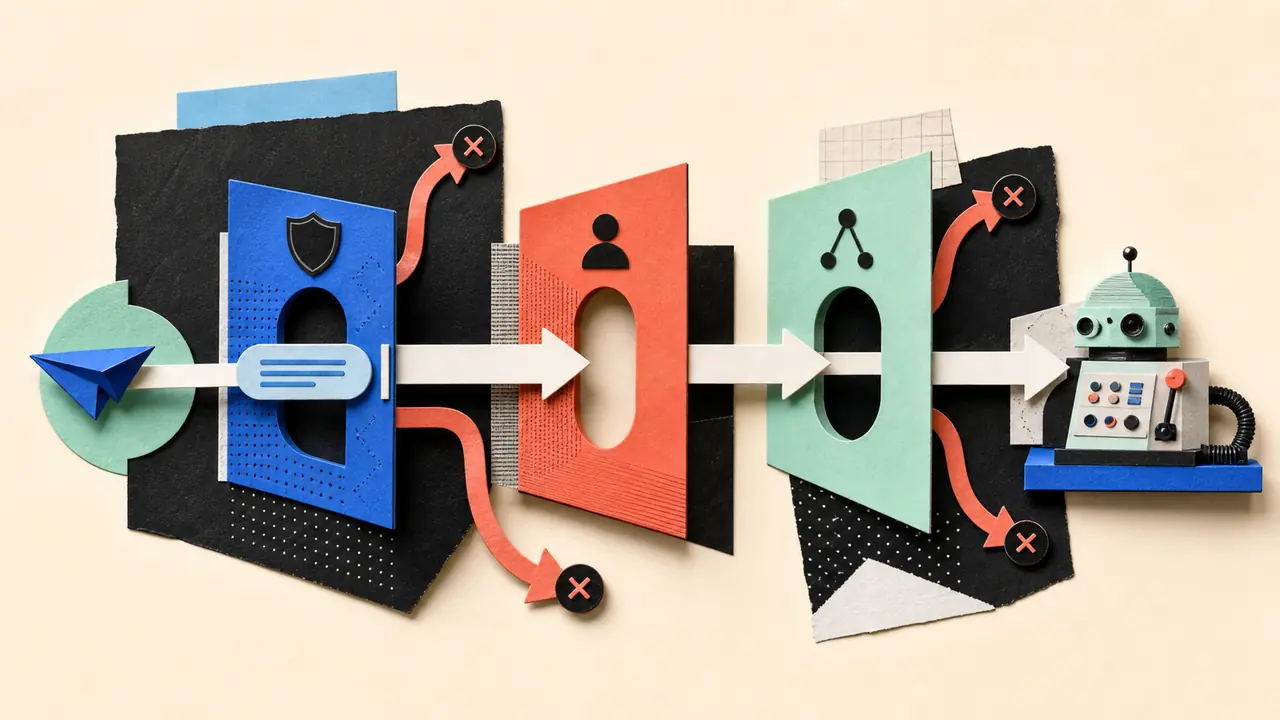
A Telegram bot can be reachable and still be wrongly owned. Two gateways may compete for the same updates. A group may be visible to Telegram but closed in OpenClaw. A permitted sender may address the parent group while the useful work belongs in one forum topic. When these boundaries are collapsed into “the token works,” every failure looks random.
Reliable Telegram automation with OpenClaw starts with three separate decisions: who owns inbound delivery, which delivered updates may activate the agent, and which conversation identity receives the turn. The current Telegram Bot API and OpenClaw channel contract make those decisions explicit. The bot token only opens the first door.
This analysis is based on Telegram's Bot API and privacy documentation plus the OpenClaw 2026.7.1-2 Telegram channel reference. A local admission model tested the documented boundaries; it did not authenticate a production bot or send Telegram messages. That distinction matters because a configuration model can prove internal consistency, not network reachability.
The token is a lease, not a credential to share
Telegram offers two mutually exclusive ways to receive updates: getUpdates long polling or a webhook. While a webhook is set, getUpdates does not work. OpenClaw defaults to long polling and allows webhook mode through webhookUrl and webhookSecret. This is not a preference to leave ambiguous during deployment; it is an ownership lease for the bot's inbound queue.
One bot token should therefore have one active transport owner. In polling mode, OpenClaw guards one active poller inside each gateway process. A persistent getUpdates 409 conflict points outside that guard: another gateway, a forgotten diagnostic script, or another service is using the token. Restarting harder does not resolve split ownership. Find the second consumer or rotate the token.
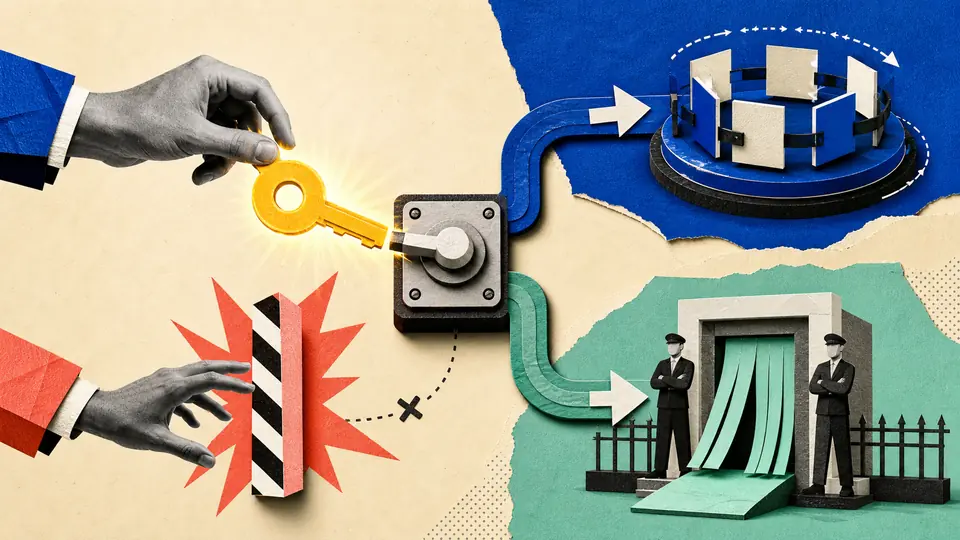
The recovery semantics differ in useful ways. Telegram retains pending updates for no longer than 24 hours. With getUpdates, advancing the offset confirms older updates, so offset handling is part of delivery correctness. OpenClaw persists its restart watermark only after an update dispatches successfully; a failed handler remains retryable in the same process. In webhook mode, Telegram retries non-2xx delivery, while OpenClaw validates request guards, the secret-token header, and the JSON body before acknowledging and processing asynchronously through its per-chat lanes.
Webhook mode is justified when a stable public ingress and its operational controls already exist. Long polling is the smaller failure surface for one gateway because it needs outbound access to api.telegram.org, not a new public endpoint. Switching transports just to cure a proxy, DNS, IPv6, or TLS problem usually trades a visible egress fault for a harder ingress fault.
Split ownership is not failover.
Troubleshooting an admission path from room to person
After Telegram delivers an update, OpenClaw applies several gates. Direct messages use dmPolicy and allowFrom. Group traffic first needs an admitted chat under channels.telegram.groups, then an admitted sender under groupPolicy and groupAllowFrom or its documented fallback, and finally the activation rule such as requireMention. These controls answer different questions.
| Boundary | Identifier | Failure meaning |
|---|---|---|
| Direct sender | Positive numeric Telegram user ID | The account may not start a DM turn |
| Group chat | Negative group or -100… supergroup ID | No sender in that chat may activate the agent |
| Group sender | Positive numeric Telegram user ID | This person may not activate the agent inside an allowed group |
| Mention activation | Bot handle or configured mention pattern | The admitted message remains ambient context rather than a turn |
The common category error is placing a negative group ID in groupAllowFrom. That field contains people, not rooms. Group IDs belong under channels.telegram.groups. Pairing creates another trap: approving a DM does not authorize that sender in groups. For a one-owner bot, the cleanest durable boundary is an explicit numeric owner ID in allowFrom, an explicit group ID, and mention activation kept on.
{
  channels: {
    telegram: {
      enabled: true,
      botToken: "<secret-or-SecretRef>",
      dmPolicy: "allowlist",
      allowFrom: ["<OWNER_USER_ID>"],
      groupPolicy: "allowlist",
      groups: {
        "<GROUP_CHAT_ID>": { requireMention: true }
      }
    }
  }
}
This configuration deliberately says less than “the bot can be used in Telegram.” It says one person can activate it in DMs and in one named group, and group turns need an explicit address. Tool policy must still limit what the resulting agent turn may do. Channel admission decides who can ask; it does not make every available tool safe.
Rooms and people are different IDs.
Visibility can fail before authorization runs
Telegram's privacy mode decides which group messages reach the bot. OpenClaw decides what to do with messages it receives. Those layers cannot compensate for each other. If requireMention=false but privacy mode remains enabled, a plain unmentioned group message may never reach OpenClaw, so no allowlist or prompt change can make it trigger.
This explains an otherwise puzzling symptom: commands and mentions work, while ordinary group conversation is invisible. If the workflow truly needs ambient group traffic, disable privacy mode in BotFather or make the bot an administrator, then remove and re-add it so Telegram applies the change. If the workflow needs only deliberate requests, keep privacy mode and mention activation. Receiving less traffic is usually the better default.
Debug in delivery order. First ask whether Telegram exposed the message to the bot. Then verify the group ID. Then verify the sender ID. Only after those pass should mention patterns, session routing, agent behavior, or tools enter the investigation. openclaw logs --follow shows skip reasons; openclaw channels status --probe checks configured numeric groups and transport health. Prompt editing belongs near the end, not the beginning.
Invisible is not unauthorized.
A topic is part of conversation identity
OpenClaw isolates group sessions by group ID. In a forum supergroup it appends :topic:<threadId>, and replies target that Telegram thread. This prevents a deployment discussion in one topic from silently sharing a turn history with finance or support in another. It also means the parent group is not a sufficient production test when topics route to different agents.
Direct-message threads have a narrower rule. OpenClaw preserves message_thread_id for replies, but splits DM sessions by thread only when Telegram's getMe reports that topics are enabled for the bot. Old dm.threadReplies overrides were removed. BotFather's threaded-mode state is now the source of truth, so upgrades should include openclaw doctor --fix and an actual threaded-message test.
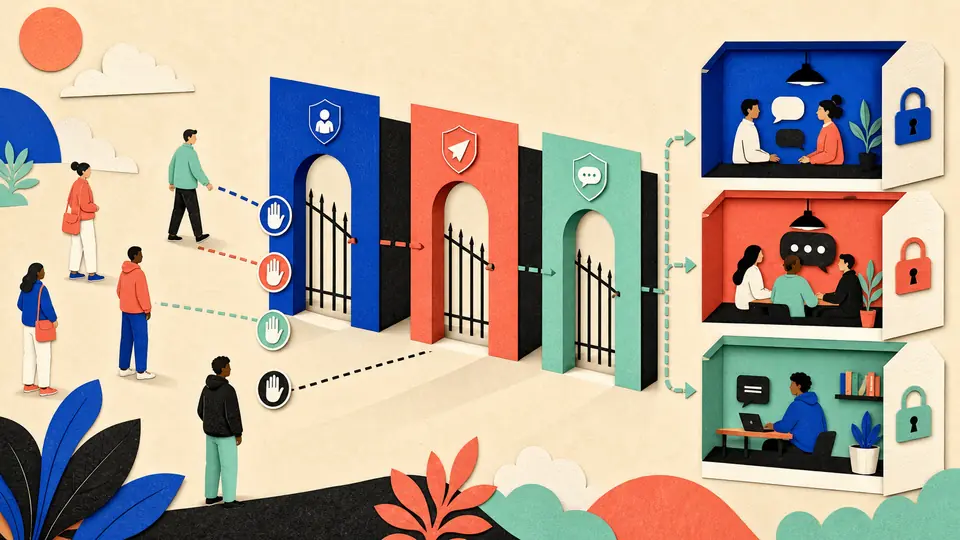
The practical consequence is simple: authorize and test the address users will actually use. A success in a DM does not validate a group. A success in a group does not validate an unmentioned message. A success in a forum's general topic does not validate topic 42 or its agentId binding. Each path has different identity and possibly different policy.
The thread is the address.
Validation with seven deliberately different messages
The local test fixture represented one polling owner, one numeric owner, one allowlisted supergroup, privacy mode on, mention activation on, and a topic-enabled bot. It exercised seven messages: owner and stranger DMs; mentioned and unmentioned owner messages in the allowed group; a stranger in that group; the owner in an unlisted group; and the owner in topic 42.
All 25 assertions passed. The owner DM, mentioned group message, and topic message were admitted. The stranger and unlisted group were blocked. The plain unmentioned group message was classified as not delivered by privacy mode rather than as an OpenClaw authorization rejection. The topic case resolved to a topic-qualified session while the parent-group case remained flat.
The distinction between “blocked,” “ignored,” and “not delivered” is operationally valuable. They can look identical to the person staring at Telegram, but their repairs are unrelated. A blocked sender needs policy. An ignored ambient message needs activation. A message Telegram never delivered needs privacy or bot-membership repair. Combining them into “no response” erases the evidence.
A missing reply is not one failure. It is the observable surface of transport, visibility, admission, activation, routing, or delivery—and the logs should tell you which boundary made the decision.
Silence needs a cause.
Delivery needs a receipt, not optimism
Receiving the right turn is only half the contract. OpenClaw sequences Telegram work per chat and thread, streams previews by editing a message in place, and defaults to a 4000-character text chunk limit. That value leaves room below Telegram's 4096-character sendMessage ceiling. Long answers may reuse a preview as the first chunk and send only the remainder; complex media falls back to normal delivery.
An automation should record the destination chat ID, topic ID when present, source update ID or triggering message ID, outbound message IDs, and final delivery outcome. Without that receipt, a timeout invites a duplicate announcement. With it, recovery can ask whether the intended message already exists, whether a preview is stale, or whether only later chunks failed.
Webhook deployments need an additional receipt: getWebhookInfo should show the intended URL, expected update types, and no unexplained pending backlog or recent delivery error. The secret token must be checked on every request. Polling deployments need exactly one owner and a healthy completed getUpdates cadence. In either mode, transport health is evidence distinct from the agent's reasoning.
Receipts make retries smaller.
Prove the boundary before granting useful tools
A good canary does not begin with “book a meeting” or “post the report.” Start with a response that discloses its address and performs no external action. Send one message through each path the workflow will rely on: owner DM, stranger DM, allowed group mention, allowed group without a mention, unlisted group mention, allowed group from a non-owner, and the exact forum topic. Record which boundary accepted or rejected each case.
Then restart the gateway once. A restart is where stale webhooks, duplicate pollers, missing secrets, and incorrectly persisted thread state reveal themselves. Confirm the same transport owner returns, the bot identity probe succeeds, and the next message enters the expected session. Only after this is boring should the agent receive message-sending, deletion, approval, browser, shell, or business-system tools.
When production drifts, keep the failure specific. A 401 from getMe means Telegram rejected the token. A persistent 409 from getUpdates means another transport owner exists. A mention works but ordinary text does not: inspect privacy mode before OpenClaw policy. One group fails while DMs work: inspect group and sender admission. One topic cross-talks with another: inspect the topic-qualified session and binding. Repeatedly widening access turns a diagnostic signal into a security regression.
Telegram automation becomes dependable when the bot is treated as a routed, admitted transport rather than a magical chat window. The token has one owner. Telegram visibility and OpenClaw authorization remain separate. Every group and topic resolves to the intended conversation identity. Outbound work leaves a receipt. Once those facts are explicit, the interesting automation can be complex without making delivery mysterious.
Primary-source record. Transport, privacy, admission, topic routing, and delivery claims were checked against Telegram's Bot API and Bot FAQ plus the OpenClaw Telegram channel reference on July 22, 2026. The documented-boundary probe used fictional identifiers, passed 25 of 25 assertions, and performed no live Telegram operation.