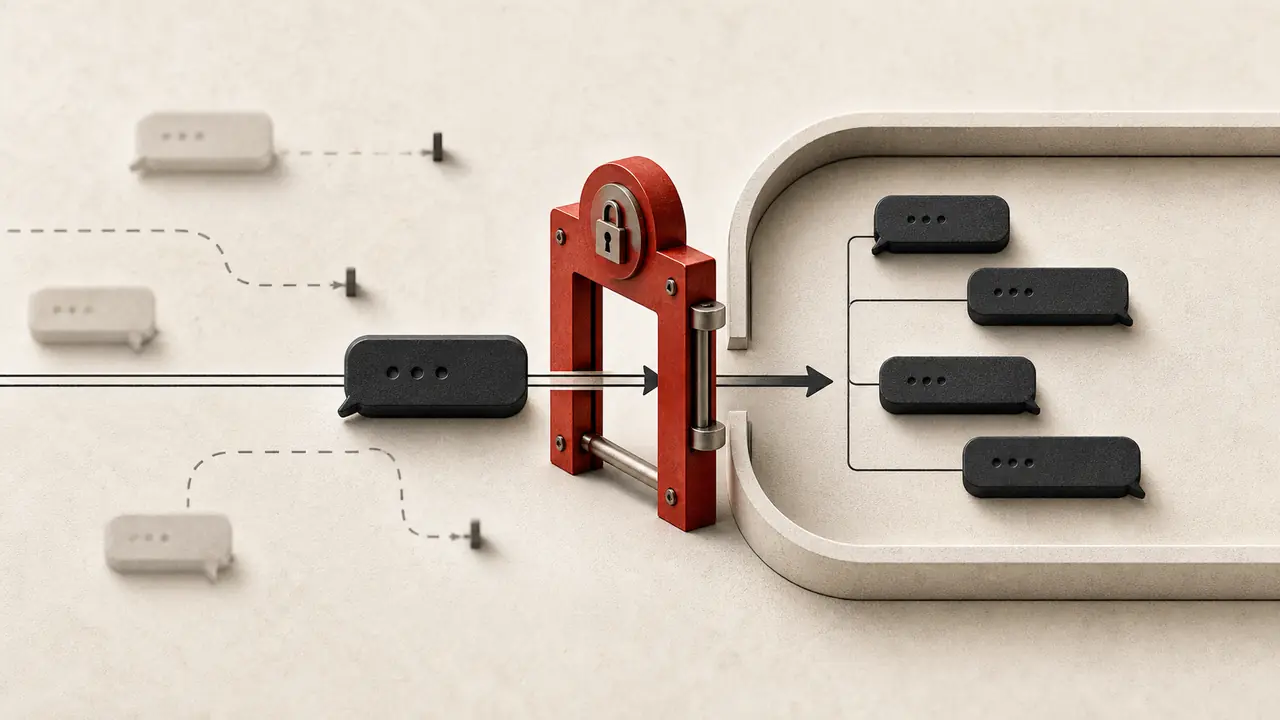
A Slack connector can be online, authenticated, and useless. The WebSocket is green; the bot appears in the workspace; no error reaches the operator. Yet every message in #ops is silently ignored because the allowlist contains a readable channel name instead of Slack’s stable C… ID.
The reverse failure is worse: the intended channel works, but an unreviewed sender or an ambient thread reply can also wake the agent. These are not connection problems. They appear when transport, admission, activation, session routing, and outbound actions are treated as one vague permission called “Slack access.”
For current OpenClaw, Slack is a native channel plugin—not an outbound-only ClawHub skill. A reliable installation binds four decisions in one acceptance record: how events arrive, who and which room may activate the agent, when a permitted message is actionable, and exactly where a permitted reply may land.
A green transport proves only the first boundary
OpenClaw currently offers three Slack transport shapes. Socket Mode is the default: the Gateway opens an outbound WebSocket and needs both a bot token and an app-level token. HTTP Request URL mode accepts signed HTTPS requests and needs a bot token plus Slack’s signing secret. Relay mode delegates Slack ingress to a trusted router while the Gateway retains its own bot token for outbound API calls.
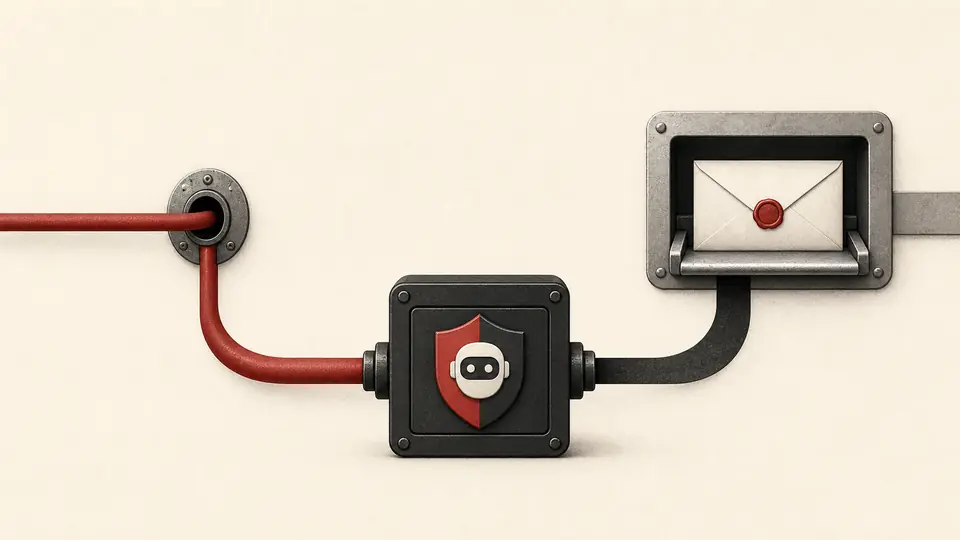
Choose between Socket Mode and HTTP by deployment shape, not by a belief that one is the “full” integration. A single Gateway behind a firewall usually benefits from outbound Socket Mode. Multiple replicas behind an existing load balancer usually fit signed HTTP requests better. Sharing one Slack app across independent Socket Mode gateways is risky: Slack may deliver a payload to any active connection, so those gateways need equivalent routing and authorization—or separate apps.
Signature verification and token checks establish that an event arrived through the expected Slack path. They do not answer whether user U… may instruct this agent, whether channel C… is in scope, or whether the resulting run may post a message. Keep those claims separate in logs and in tests.
Write the authorization decision with IDs
Slack DMs and Slack channels use different admission policy. DMs default to pairing. Channel traffic uses groupPolicy, with the room allowlist stored under channels.slack.channels. Under allowlist policy, those keys must be stable channel IDs such as C01ABCDEF.
A name like #ops is convenient for a person and poor as an authority coordinate. Names can change, collide across workspaces, or fail startup resolution. Current OpenClaw routing is ID-first; a name key under groupPolicy: "allowlist" does not match by default. The bot may look healthy while the room is silently blocked.
{
  channels: {
    slack: {
      mode: "socket",
      botToken: { source: "env", provider: "default", id: "SLACK_BOT_TOKEN" },
      appToken: { source: "env", provider: "default", id: "SLACK_APP_TOKEN" },

      dmPolicy: "pairing",
      allowFrom: ["U0OWNER01"],
      groupPolicy: "allowlist",
      channels: {
        C01OPS234: {
          allow: true,
          users: ["U0OWNER01", "U0ONCALL2"],
          requireMention: true,
          ignoreOtherMentions: true,
          replyToMode: "first"
        }
      },
      thread: { requireExplicitMention: true },
      actions: {
        messages: true,
        reactions: true,
        pins: false,
        memberInfo: true,
        emojiList: true
      }
    }
  }
}
This is a policy shape, not a copy-paste manifest. Use the current official Slack manifest for exact events and scopes, store credentials through SecretRefs or environment-backed secret resolution, and substitute IDs from the intended workspace. Do not put a live token in the config example, a prompt, or a shell history line.
The distinction between workspace, room, and sender matters. A room allowlist answers where events may come from. A per-room users list narrows who may activate the agent there. A DM allowlist does not automatically become a room sender list, and a named account’s inheritance rules differ from the default account. Record the effective account when diagnosing access; otherwise two correct-looking fragments can produce the wrong combined policy.
Mention gating is a switch, not an identity check
requireMention controls activation after admission. It can make an allowed room quiet until the bot is addressed. It cannot authorize an unknown sender, rescue a missing channel ID, or compensate for groupPolicy: "disabled". Changing it while debugging an authorization failure only widens the set of messages considered actionable after the actual failure point.
Threads add a Slack-specific wrinkle. Once the bot has participated, a later reply in that thread can act as an implicit mention unless thread.requireExplicitMention is true. That behavior makes a conversation feel continuous, but it also means “the bot answers only when tagged” is false unless the thread rule is included.
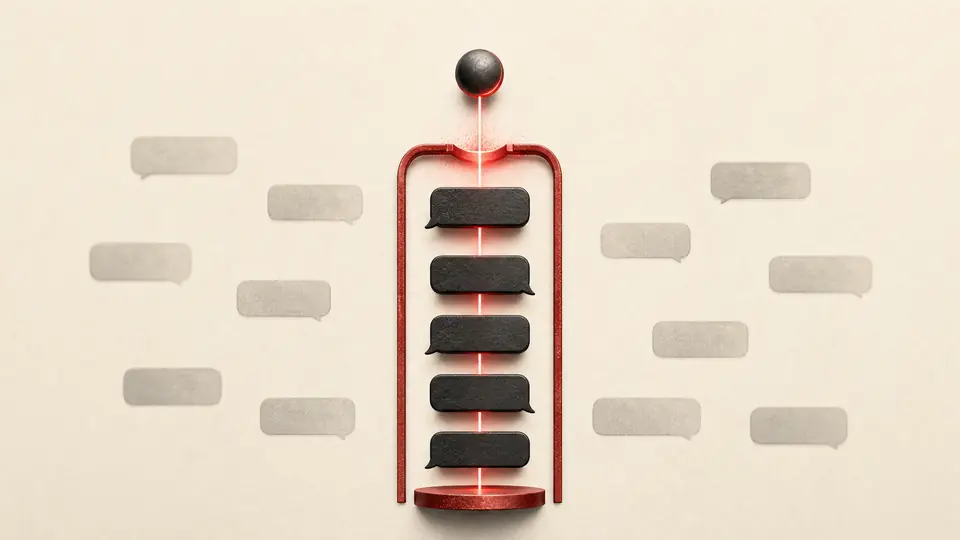
There is another easy misread: replyToMode="off" disables outbound Slack reply threading. It does not flatten messages that already arrived inside a Slack thread. Their session key still carries the parent thread_ts. An operator who expects one channel-wide context can therefore see “missing history” even though routing is working as designed.
| Decision | Primary coordinate | What it does not prove |
|---|---|---|
| Transport ready | Mode and required secret availability | Sender or room authorization |
| Event admitted | Account, sender ID, channel ID, DM/group policy | That the agent should answer this message |
| Run activated | Mention, thread participation, explicit-thread rule | Where an outbound reply will appear |
| Context selected | Direct, channel, or thread_ts session key | That a side effect is enabled |
| Action permitted | Action group plus agent/tool policy | That the proposed target and content are intended |
Testing: availability and authority diverged
I encoded the current contract in a local deterministic fixture. It did not connect to a Slack workspace, call the Slack Web API, or mutate a message. The cases varied transport credentials, DM policy, channel keys, sender lists, bot-authored events, mention behavior, thread participation, enabled action groups, target syntax, and session routing.
All 42 declared outcomes matched. Nineteen cases were admitted or ready, eighteen were blocked, four were held or left quiet, and one asserted the exact thread-suffixed session route. The counts are coverage, not a production success rate.
Three results changed the operating checklist:
- A complete Socket Mode credential pair did nothing for a room configured as
#opsunder allowlist policy. Transport readiness and route readiness are different tests. - Removing the mention requirement admitted an ambient message only after room and sender checks passed. It never repaired a denied identity.
- Disabling outbound reply threading left the modeled inbound session at
agent:main:slack:channel:C01OPS234:thread:<threadTs>. Reply visibility and context isolation are separate.
The fixture also held a send addressed to bare C01OPS234 while accepting channel:C01OPS234 and user:U0OWNER01. OpenClaw documents those explicit prefixes as preferred delivery targets. Requiring them in an application adapter removes an avoidable ambiguity before a side effect.
Outbound Slack is a second authority surface
The current Slack tooling exposes message, reaction, pin, member-information, and emoji actions. The defaults are useful, not harmless. Posting or editing a message changes a shared workspace record; deleting or unpinning one can erase context; reading member details expands the data visible to the run.
Start with the smallest action set the workflow needs. An acknowledgment assistant may need reactions but not messages. A reviewed incident reporter may need messages and member lookup but not pins. If one channel serves mixed trust levels, use per-channel tools or toolsBySender, a restricted agent, or an application adapter that accepts only one typed operation. A prose instruction such as “do not pin unless necessary” is not equivalent to pins: false.
Thread delivery deserves an explicit field in that operation. A same-channel message call made inside a Slack thread can inherit the current thread according to the effective reply mode. topLevel: true forces a new parent-channel message. An explicit thread send can also request replyBroadcast, which makes Slack surface the reply in the parent channel. That is a visibility expansion and should not be inferred from the content.
{
  "operationKey": "incident-20260723-017:status:2",
  "accountId": "ops",
  "action": "send",
  "target": "channel:C01OPS234",
  "threadId": "1784761200.004200",
  "topLevel": false,
  "replyBroadcast": false,
  "contentDigest": "sha256:…",
  "approval": "reviewed-status-v2"
}
This envelope is an application contract, not the raw Slack method body. Its job is to make destination, visibility, content, and replay identity reviewable before the generic channel action runs.
Bot-authored events need a loop decision
Allowing messages from other bots can be useful for deploy, alert, and ticket workflows. It can also create a feedback loop: one bot posts, OpenClaw answers, another integration mirrors the answer, and the cycle consumes attention or money.
OpenClaw’s allowBots behavior is deliberately conservative. A bot-authored room message needs an explicitly allowed bot sender, or a concrete Slack owner from allowFrom must be present in the room; wildcards and display names do not satisfy that owner-presence guard. If membership lookup fails, the event is dropped. Shared bot-loop protection applies after acceptance.
Do not fix a dropped deploy event by setting every wildcard and enabling every bot. Bind the producer’s Slack ID, retain mention or event-shape activation, set a small loop budget, and test one reflected-message case. The desired evidence is not merely “deploy bot was heard.” It is “this producer in this room can trigger this route once; the agent’s own reply cannot trigger it again.”
Validation for one real channel
Before calling the integration production-ready, retain one redacted record with the following fields:
- OpenClaw version, Slack account ID, and selected transport mode;
- required secret statuses—not the secret values—and one transport probe result;
- stable DM sender IDs, channel IDs, and any per-channel sender IDs;
- mention rule, explicit-thread rule, reply mode, and initial thread-history limit;
- enabled Slack action groups and the narrower agent/tool policy;
- one denied test for an unknown sender or room;
- one quiet test for an allowed but unmentioned message;
- one harmless accepted canary with its exact session key;
- when outbound work is enabled, the explicit
channel:oruser:target, returned message ID, and reconciliation result.
The negative tests matter. A successful mention proves that one path works. It does not prove that a stranger, renamed room, ambient thread reply, or bot mirror is denied.
For HTTP mode, add one bad-signature request and one stale-timestamp request. For Socket Mode, record recovery after a bounded connection interruption. For shared or relayed ingress, prove that two destinations cannot disagree about sender and room policy.
The useful definition of “automated”
Slack automation is not complete when the bot posts its first answer. It is complete when an operator can explain why this event reached this agent, why it received this context, why this action group was available, and why the result appeared in this channel or thread exactly once.
That standard makes the setup less magical and much easier to operate. Keep transport health, identity admission, mention activation, thread routing, and outbound delivery as separate receipts. Then a silent room points to its channel ID or sender policy; an unexpected wake points to its mention or bot-event rule; a hidden answer points to its thread choice; and a forbidden side effect stops at the action gate instead of relying on the model to remember.
The policy drill did not prove Slack availability, and it did not send a live canary. It proved the part a live canary cannot: the denied paths. Combine both forms of evidence before giving an OpenClaw agent a shared workspace voice.