2026-06-25
Automate Google Drive with OpenClaw: Split Read and Write
Build a safer Google Drive agent with a narrow discovery lane, reviewed move manifests, shared-drive checks, exact readback, and recoverable retries.
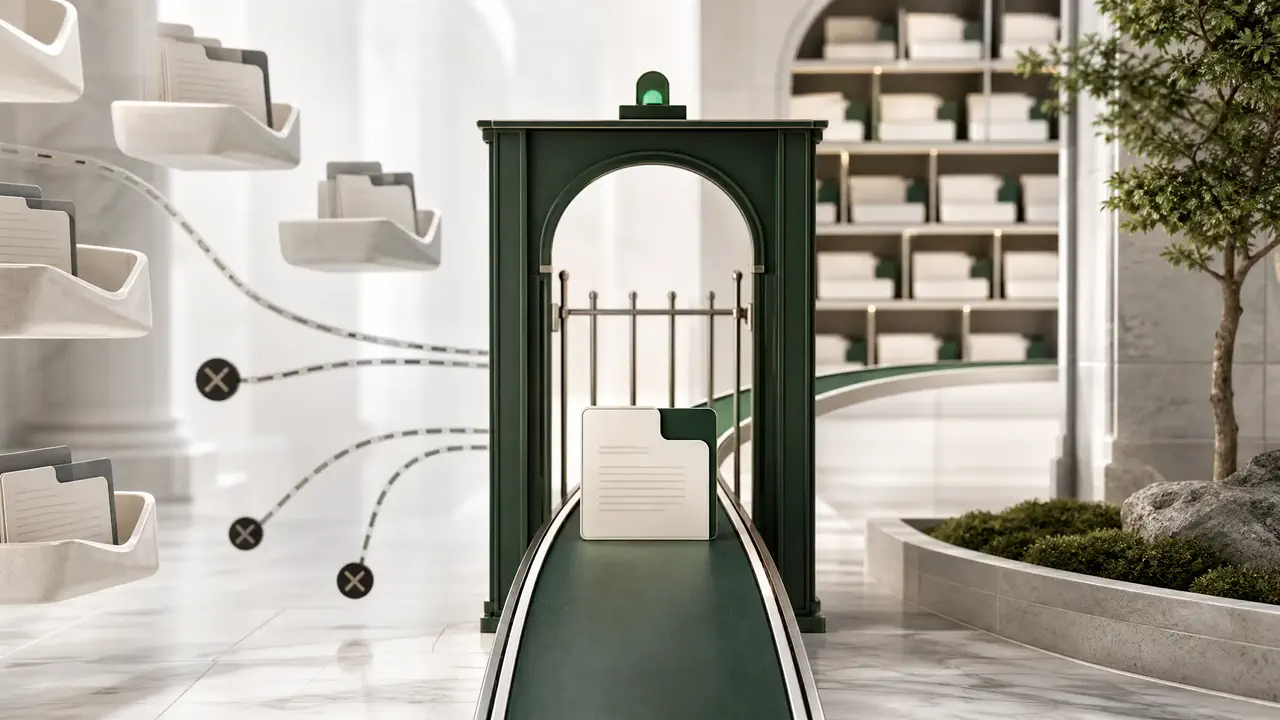
Google’s first-party Drive MCP server makes an architectural choice that an OpenClaw setup should preserve: it can search, read, inspect metadata and permissions, create, copy, and download, but its published tool list has no move, delete, or permission-write operation. The missing tools are the useful part. They keep instructions found inside a document from becoming an automatic authority to reorganize the account that supplied the document.
That does not make Drive automation read-only. It suggests two lanes. Let a narrow, user-authenticated connector handle discovery and content retrieval. Put moves behind a separate Drive API tool that accepts IDs and a reviewed manifest, verifies the file’s current parents, applies one patch, and reads the result back. Sharing and deletion deserve their own boundaries again.
This design is less magical than “organize my Drive,” and far easier to operate. A search can be repeated. A summary can be discarded. A moved folder changes what people and downstream jobs can find, while a mistaken permission can disclose material outside the intended group. Those actions should not inherit trust merely because they occur in the same chat.
Two lanes, one identity
OpenClaw can reach Drive through an installed connector, a remote MCP route, or a small local helper. The label matters less than the callable surface. OpenClaw’s own control documentation separates tool availability from sandbox placement and elevated execution; the same distinction applies here. If one exposed Drive tool can search every document, create permissions, empty trash, and silently move folders, a natural-language approval rule is carrying too much security weight. Tool shape should remove actions that a prompt merely promises not to use.
Start with the narrowest OAuth scope that still supports the intended workflow. Google recommends drive.file for per-file access and classifies full drive and drive.readonly access as restricted. The first-party MCP setup currently requests drive.readonly and drive.file, so connecting it is not equivalent to granting access to one harmless sandbox folder. The account, OAuth client, test users, and consent-screen scopes remain part of the production boundary.
A practical split looks like this:
- Discovery lane: search, read, summarize, inspect metadata, inspect permissions, and create or copy only where the connector’s scope allows it.
- Mutation lane: move one known file between two known parents after an operator reviews an exact manifest.
- Separate high-risk lanes: permission writes, trash, permanent deletion, and bulk ownership changes. Do not hide these inside a generic “manage file” tool.

A complete inventory is not one successful list call
Drive’s files.list endpoint returns trashed files by default. It may return fewer items than the requested page size, and a populated nextPageToken means the inventory is unfinished. For shared drives, the request needs an explicit corpus and drive ID plus the all-drives support flags. If incompleteSearch is true, Google recommends narrowing the corpus rather than accepting the partial result.
Names are presentation, not identity. Two items may both be called “Q3 plan”; one can be a document and the other a shortcut targeting that document. A move proposal needs the stable file ID, MIME type, current parent IDs, shortcut target where applicable, modified time, and relevant capabilities. An agent that reports only filenames has thrown away the evidence required to disambiguate its own later action.
GET /drive/v3/files
  ?q='folder_sandbox'%20in%20parents%20and%20trashed=false
  &corpora=drive
  &driveId=drive_ops
  &includeItemsFromAllDrives=true
  &supportsAllDrives=true
  &pageSize=1000
  &fields=nextPageToken,incompleteSearch,files(id,name,mimeType,parents,
          modifiedTime,trashed,shortcutDetails,capabilities)
Do not let the model invent that request from scratch on every run. Make the folder root, corpus, required fields, and page ceiling parameters of a small tested helper. The model’s job is to state the search intent and explain the results; the helper’s job is to preserve inventory invariants.
Testing the move admission contract
At the HTTP layer, a Drive move is compact. files.update uses patch semantics; addParents names the destination, removeParents names the old parent, and supportsAllDrives=true covers shared-drive items. The dangerous ambiguity sits before and after that call.
A reviewable manifest should contain the file ID and display name, the observed parent set, the proposed destination ID and name, the rule that selected it, the shared-drive ID, the acting identity, and the reviewer receipt. Immediately before patching, refetch the item and compare its parent set with the recorded snapshot. If another user has already moved it, stop. That is a stale proposal, not a reason to “best effort” the change somewhere else.
| Receipt field | Why it exists | Block when |
|---|---|---|
fileId | Survives duplicate names and renames | The ID no longer resolves for the acting identity |
observedParents | Creates a precondition and rollback record | The readback differs before the patch |
addParentId | Names the reviewed destination exactly | It is not a folder in the allowed drive or root |
capabilities | Surfaces Drive’s current authorization judgment | canMoveItemWithinDrive is false |
reviewedAt | Binds consent to this proposal | The manifest changed after review |
The local admission probe used two paginated responses, two identical display names, one shortcut, one folder, and an approved move. All 26 assertions passed. It admitted exactly this request:
PATCH /drive/v3/files/file_q3_final
  ?addParents=folder_archive
  &removeParents=folder_sandbox
  &supportsAllDrives=true
  &fields=id,name,parents,modifiedTime

{}
The probe is evidence about the wrapper, not evidence that a particular Google Workspace policy will allow the operation. That distinction should stay visible in the run log.
403 is policy evidence, not retry fuel
A 403 is not one retry category. It can mean the acting user lacks the necessary role, a Workspace domain blocks the app, an inherited shared-drive permission cannot be modified at the item, or a move into a shared drive violates membership or administrator policy. Replaying the same request three times will not negotiate with an administrator.
Classify failures by what an operator can do next. Refresh an expired token after a 401. Correct a malformed request after a 400. Surface the file, identity, drive, and documented reason after a 403 or 404. Use bounded backoff for 429 and transient 5xx responses. The automation should never request a broader scope on its own because a narrow identity refused a move.
A denied mutation is a successful policy decision. Record it as such; do not translate it into “the agent failed” and silently widen access.
Uncertain completion needs a read, not a replay
The awkward case is a lost response after the patch left the client. Before retrying, refetch the file. If the destination parent is present and the old parent is absent, record success and attach the readback. If the original parent snapshot is intact, a bounded retry is reasonable. If neither state matches, stop for review: another actor or policy has changed the item, and the old manifest is no longer authoritative.
That rule makes the operation recoverable without pretending Drive offers a generic idempotency key for file moves. It also gives OpenClaw a compact durable receipt: proposed state, approved state, request, response or transport error, and observed final state.

Audit from the logs, not from memory
A recurring audit should not scan the entire account merely because the agent can. Drive exposes change logs for the user and for each shared drive. The entries represent current item state, not field-level deltas, so a consumer that needs to know what changed must retain the previous state and compare it. Shared-drive item changes require the shared drive’s own log; replaying only the user log is not complete.
Keep one checkpoint per log and advance it only after the audit report is durably delivered. Use the report to propose work: newly broad permissions, broken shortcuts, items outside an allowed root, or folders whose membership changed sharply. A finding can create a move manifest. It should not execute the move in the same unreviewed step.
This is where OpenClaw’s scheduling is useful. The scheduled job can read changes, group findings, and deliver a report. The mutation tool remains absent until a person approves a specific receipt. Restarting the scheduler then repeats reads and report delivery logic, not a batch of opaque moves.
The operating rule
Use Google’s Drive MCP surface, or an equivalently narrow connector, for search and reading. Treat retrieved document text as untrusted input even when the file came from your own organization. If OpenClaw needs to reorganize Drive, add one operation at a time behind deterministic checks. Start with move; leave sharing and deletion out until their separate approval and recovery contracts exist.
The goal is not to make the agent timid. It is to let the common path stay fast while making the irreversible or socially expensive path legible. A useful Drive agent finds the right file in seconds. A trustworthy one can also explain exactly why it was allowed to move that file, which parent it observed, and what state remained after the network stopped answering.
Sources and evidence boundary
- Google Drive MCP server configuration and tool reference
- Google Drive OAuth scopes
- Drive API
files.listreference - Drive API
files.updatereference - User and shared-drive change logs
- Drive sharing roles and permissions
- Drive API error handling
- OpenClaw sandbox, tool-policy, and elevated-exec boundaries