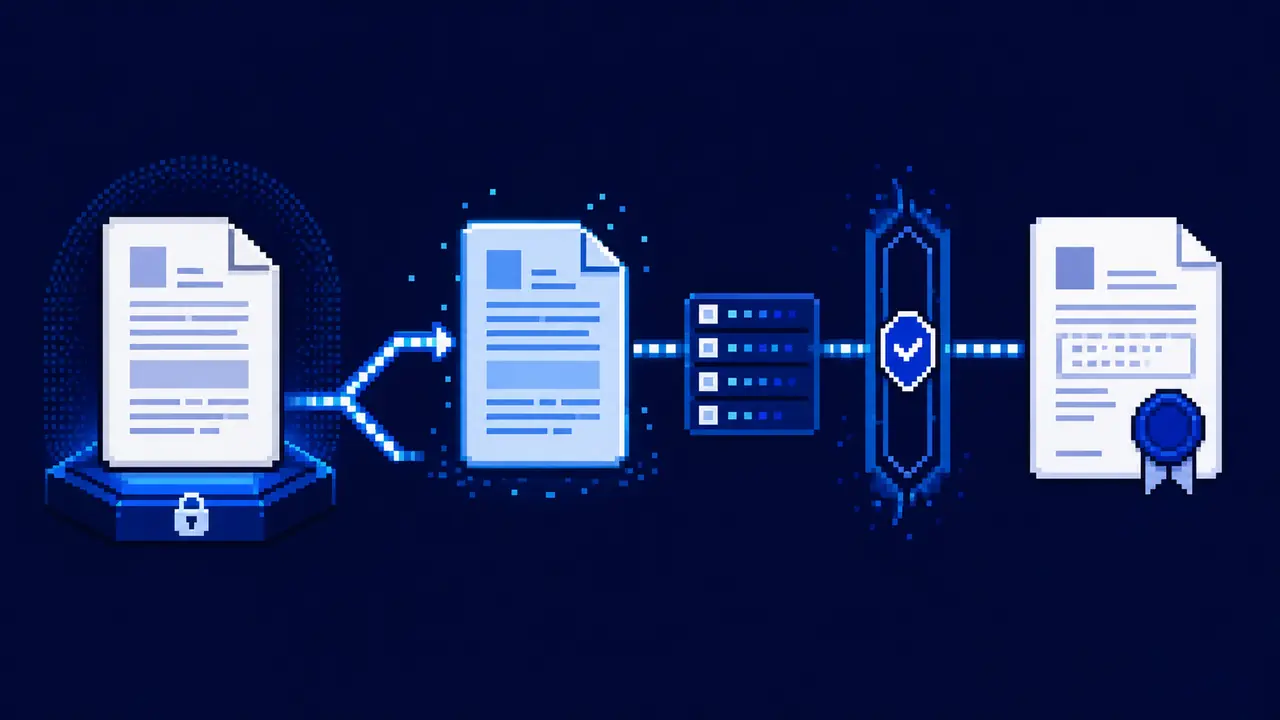
The most dangerous word in a document-agent run is updated. It does not identify the file, the tab, the revision, or what a retry will do. A polished paragraph followed by “done” can hide three different failures: the shared original was edited instead of a copy, a collaborator changed the document after review, or the same batch ran twice after a timeout.
For OpenClaw, the useful boundary is narrower than “access Google Docs.” Let the model propose a change. Give a credential-bearing adapter four coordinates before it may write: the source file ID, a distinct working-copy ID, the revision that was reviewed, and a durable operation key. The adapter—not the prompt—owns the refusal rules and the receipt.
The decision: make document editing a transaction
A Google Doc crosses two service boundaries. The Drive API owns the file container: discovery, copying, folders, and permissions. The Docs API owns document structure and content. A production workflow needs both, but it should not expose both APIs as one bag of arbitrary calls.
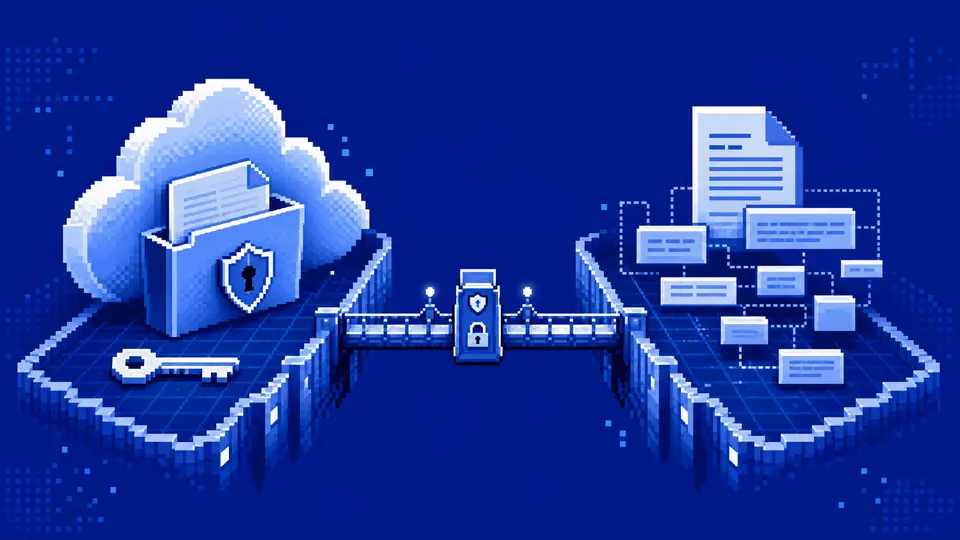
The practical tool surface can be small: prepareDocumentChange, applyApprovedDocumentChange, and reconcileDocumentOperation. OpenClaw can still interpret a request, extract replacement values, and explain a proposed result. It never needs a generic authenticated HTTP tool capable of writing any document the credential can see.
A skill is useful here as operating guidance and schema documentation. It is not a security boundary by itself. OpenClaw’s own skill documentation describes eligibility gates, allowlists, and environment injection; the actual Google credential and the refusal logic still belong in the narrow adapter.
Four coordinates prevent four different mistakes
| Coordinate | What it binds | Failure it exposes |
|---|---|---|
sourceFileId | The document supplied as evidence | A title search resolved the wrong file |
workingCopyId | The only allowed write target | The original and candidate were confused |
requiredRevisionId | The exact state reviewed before writing | A collaborator changed the copy meanwhile |
operationKey | One logical application attempt | A timeout triggered a duplicate write |
Names are deliberately absent from that list. A title is presentation, not identity. Two files can share it, and a copied template usually begins life with a near-identical title. The Drive files.copy method returns a new File resource; retain its ID immediately and refuse a Docs write when it equals the source ID.
The revision is just as specific. Google documents it as an opaque, user-specific value rather than a sequential version number. It is useful for concurrency control, not for claims such as “revision 18 came after revision 17.”
Atomic does not mean unchanged since review
documents.batchUpdate validates every request before applying the batch. If one request is invalid, the batch fails and nothing is applied. Accepted updates are applied together atomically. That is a strong primitive, but it answers only whether the batch is internally all-or-nothing.
Collaboration adds a separate question. With targetRevisionId, Google can transform a request against edits made after the client read the document. That is valuable when the client should behave like another live collaborator. It is the wrong default when a person approved an exact candidate and expects those exact bytes and ranges.
For that review-bound lane, send writeControl.requiredRevisionId. Google returns HTTP 400 when it is not the current revision. Treat that response as a useful stop: fetch the latest document, recompute the proposal, and obtain a new approval. Blindly replacing the revision in the same request would erase the point of the check.
{
  "operationKey": "docs-op-20260722-001",
  "sourceFileId": "doc-source-17",
  "workingCopyId": "doc-working-42",
  "requestDigest": "sha256:…",
  "requiredRevisionId": "opaque-revision-from-get",
  "requests": [
    { "replaceAllText": { "containsText": { "text": "{{owner}}", "matchCase": true }, "replaceText": "Unassigned" } }
  ]
}
This envelope is illustrative, not a Google request body.
The adapter turns it into the Drive and Docs calls only after the IDs, digest, approval, revision, and operation allowlist agree.
A replacement run, end to end
Suppose a locked meeting-notes template contains {{owner}} in two tabs. OpenClaw proposes replacing both markers with Unassigned; it is not yet authorized to touch either file.
- The adapter copies the template through Drive, retains the returned file ID, and confirms the copy landed in the controlled folder.
- It reads the copy with
includeTabsContent=true, finds two exact markers, and records the returned revision ID. - The review packet names both tab IDs, the two replacements, the working-copy URL, and a digest of that exact request list.
- After approval, one
batchUpdatetargets the copy withrequiredRevisionId. No title search happens in the write path. - A second all-tabs read confirms zero remaining markers and two inserted values; a separate source read confirms the template revision did not move.
Only then does the operation acquire a verified receipt. If the final source check fails, the copy can still be useful, but the receipt must say that its evidence base moved during the run.
Validation: the first-tab readback trap
A successful response is not the verification. Fetch the working copy again and compare the result with the approved after-state. For multi-tab documents, that second read has an easy compatibility trap: Google’s current documents.get reference says that includeTabsContent=false populates legacy content fields from the first tab and excludes Document.tabs. With the flag set to true, content moves under Document.tabs.
That means a checker written for older single-tab documents can report a clean match while never inspecting the tab that was supposed to change. The fix is not “ask the agent to check every tab.” The adapter should always request tab content, walk each returned tab and child tab, and bind expected markers to tab IDs.
The verification packet should also fetch the source again. A copy ID proves that a candidate exists; an unchanged source revision is the evidence that the original remained untouched. If the source moved meanwhile, record the new source revision separately rather than pretending the candidate was generated from it.
A 34-case drill made the retry rule concrete
I ran a local deterministic probe against the transaction contract. It did not call Google or mutate a live document. The fixture varied file identity, folder, principal, approval digest, revision mode, tab coverage, request shape, shared-drive handling, readback, source stability, receipt durability, and replay state.
All 34 expected outcomes matched. Four plans reached a verified-write outcome. Twenty-nine were blocked, including writes aimed at the source, stale revisions, first-tab-only reads, unknown operations, a changed source revision, and receipts whose digest did not match the approved request. One exact replay returned reconciled_no_write.
The surprising case was not a malformed request. It was the plausible retry. The Docs batch endpoint accepts requests and writeControl; its published body does not provide an application idempotency key. If a network timeout hides the response, sending the batch again can repeat an insertion even though the first call succeeded.
Failure modes: the receipt decides recovery
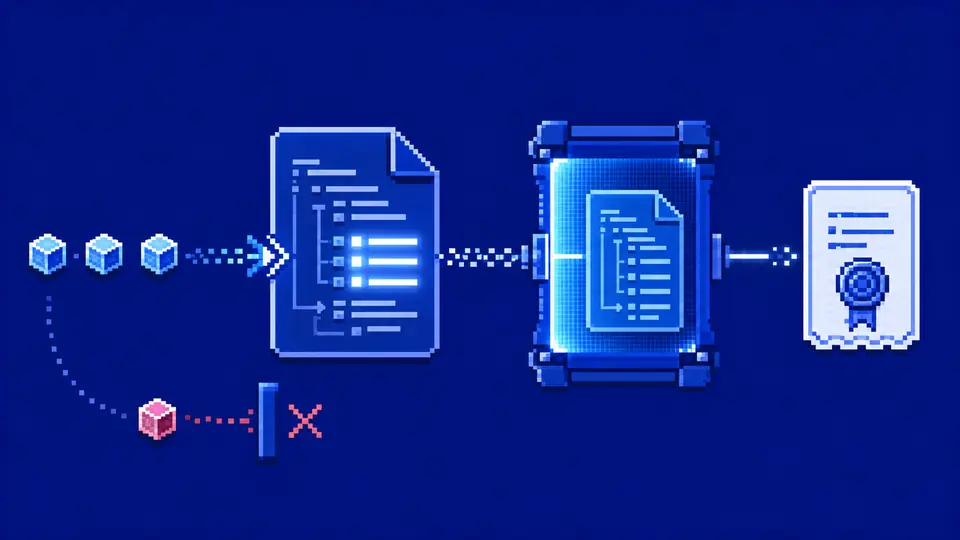
Store the operation key before the mutation, then bind it to the request digest, source ID, copy ID, before revision, approval identity, and expected markers. After the write, add the returned revision, a fresh all-tabs readback, the source revision check, and the final copy URL.
Recovery then has three distinct paths:
- No request was sent: the same approved envelope may run.
- The outcome is unknown: read the working copy and operation store first. A matching verified receipt closes the retry without writing.
- The revision is stale or the readback differs: stop. Produce a new proposal rather than quietly rebasing the approved one.
A link plus a chat message is not that receipt. It cannot distinguish a completed write from a duplicate, or a verified candidate from a file that merely exists.
Keep scopes outside the prose
Google recommends choosing the narrowest Drive scope possible and lists drive.file among the non-sensitive scopes recommended for most use cases. That scope fits workflows where the app operates on files the user selects or the app creates. Some organizational or pre-existing-file workflows need a different authorization model; decide that at integration design time, not when a prompt encounters a 403.
Folder allowlists, document IDs, operation allowlists, and approval policy should be checked again at call time. OAuth consent describes the maximum authority granted to the application. It does not prove that this particular operation is intended.
Shared drives deserve one explicit branch. Drive’s copy method exposes supportsAllDrives. If the source is in a shared drive and the adapter has not enabled and tested that path, refuse the copy instead of falling back to a personal folder with different ownership or retention.
The smallest contract worth operating
Start with one controlled folder, copy-only writes, four allowed request types, and a hard batch limit. Require an approval digest for every mutation. Use requiredRevisionId, fetch all tabs after the batch, assert the source revision is unchanged, and persist the receipt before OpenClaw reports success.
This excludes comments, suggestions, link rewriting, arbitrary range deletion, permission changes, and direct edits to shared originals. Those are not impossible. They are separate products with different identity, review, and recovery rules.
The result is less magical than “let the agent edit our docs,” which is precisely why it can run repeatedly. OpenClaw still does the language work: understand the request, prepare the candidate, and explain the diff. The adapter makes the consequential claim: this approved operation reached this copy at this revision, every tab was checked, the source stayed unchanged, and a retry will not write it again.